Demo applications DX-RT 3.3.2
DEEPX provides demo applications through the dx-app repository. These applications are included in the pre-built images provided by Embedded Artists, and can also be built into custom Yocto images by including the meta-ea-dx Yocto layer.
The way to run applications is version dependant. To check which version is being used, run dxrt-cli -s on target. The DXRT version shown on the first line like this. For 3.3.2 it looks like this:
DXRT v3.3.2
=======================================================
 * Device 0: M1, Accelerator type
---------------------   Version   ---------------------
This page is only for version 3.3.2 and later. For older versions visit Demo applications up to DX-RT 3.1.0 or Demo applications DX-RT 3.2.0.
All examples on this page were executed on RZ/G3E hardware running on an official build available on sw.embeddedartists.com. Note that the official builds does not include the Renesas proprietary graphics and codec drivers so the profiling data below is quite low. See instructions on the wiki, specifically Add Proprietary Packages for information about adding the support.
Models and Resources
To run the demo applications, compiled DNNX models as well as additional resources - such as sample videos and images - are required. The AI kits have the models and resources already installed, but your own build will not. Follow the steps below to install the resources.
Models
DXNN models have to be downloaded from DeepX Model Zoo one by one.
This is the procedure to download Ultralytics YOLOv8-n-ppu but the same steps can be used for any model
-
Go to DeepX Model Zoo
-
Locate an interesting model

-
Go to the DXNN column (you will get 'Q-Lite DXNN' tooltip when you are over the correct icon)
-
Right click the download symbol and select 'Copy link address"
-
In Linux on the RZ/G3E SOM, run this command to download the model:
mkdir -p assets/models
wget -P assets/models https://sdk.deepx.ai/modelzoo/dxnn/2_3_0/YoloV8N_PPU.dxnn
Repeat the steps for all the models that you want to evaluate.
Download sample videos
Sample video files are downloaded from the DEEPX resource directory and unpacked into the directory: assets/videos.
wget https://sdk.deepx.ai/res/video/sample_videos.tar.gz
mkdir -p assets/videos
tar -xvf sample_videos.tar.gz -C assets/videos/
Download sample images
Sample image files are downloaded from the dx-app GitHub repository and stored in the directory: assets/images.
mkdir -p assets/images
wget -P assets/images/ https://raw.githubusercontent.com/DEEPX-AI/dx_app/refs/heads/main/sample/ILSVRC2012/1.jpeg
wget -P assets/images/ https://raw.githubusercontent.com/DEEPX-AI/dx_app/refs/heads/main/sample/img/7.jpg
wget -P assets/images/ https://raw.githubusercontent.com/DEEPX-AI/dx_app/refs/heads/main/sample/img/8.jpg
About Examples
In version 3.3.2 of DX_RT there was a overhaul of the demo applications.
As a result, these are now > 500 applications (all in /usr/bin/). Common names are:
3ddfa_v2_mobilnet*_*sync
alexnet*_*sync
arcface_iresnet*_*sync
bisenet*_*sync
densenet*_*sync
mobilenet*_*sync
resnet*_*sync
scrfd*_*sync
yolov*_*sync
Note on closing GUI applications
When running the examples below and passing in an image file (i.e. via the -i parameter) the graphical window that shows the result is difficult to close.
- If a mouse is used to press the X in the upper right corner, then the window will go away but the program is still running so the terminal appears hanging
- Using Ctrl-C in the terminal does not work
These are two ways to solve the issue:
- Use a USB keyboard and press the 'Q' key to close the application. This is the preferred way as the program exits nicely and will print all the statistics from the run.
- In the terminal that launched the example: (assuming the program running is
efficientnetb4_asyncotherwise change thepgrepparmeter)- press Ctrl-Z to get back to the terminal
- run
pgrep efficientnetb4_asyncand it will show the process number, e.g. 523 - run
kill -9 523
This is only an issue with images. If the input is camera or video then the programs close correctly.
Image classification
Image classification is a computer vision task in which a neural network analyzes an image and assigns it a single label from a predefined set of categories. The image classification demo demonstrates this functionality by running a trained model on a static image.
Run the following command to classify an image:
efficientnetb4_async -m assets/models/EfficientNetB4.dxnn -i assets/images/ILSVRC2012/1.jpeg -l 1
[INFO] Model loaded: assets/models/EfficientNetB4.dxnn
[INFO] Model input size (WxH): 380x380

[INFO] Starting async inference...

==================================================
               PERFORMANCE SUMMARY
==================================================
 Pipeline Step   Avg Latency     Throughput
--------------------------------------------------
 Read               7.92 ms      126.2 FPS
 Preprocess         4.42 ms      226.2 FPS
 Inference          0.00 ms      102.3 FPS*
 Postprocess        0.03 ms     37616.6 FPS
 Render             3.98 ms      251.5 FPS
 Display          218.23 ms        4.6 FPS
--------------------------------------------------
 * Async: turnaround latency (submit to callback)
   Throughput measured independently
--------------------------------------------------
 Infer Completed     :    1
 Infer Inflight Avg  :    0.0
 Infer Inflight Max  :      1
--------------------------------------------------
 Total Frames        :    1
 Total Time          :    8.3 s
 Overall FPS         :   0.1 FPS
==================================================
The program (as of version 3.3.2) no longer prints any information about the result on the classification in the terminal. Instead the information is overlayed on top of the image in the window.
Object detection
This section describes how to run object detection demos using YOLO-based models. Object detection is a computer vision task in which a neural network identifies and localizes multiple objects within an image or video by drawing bounding boxes around detected objects and assigning class labels.
Run the following command to perform object detection on a video stream. When a display is connected, the video output will be shown with bounding boxes overlaid on the detected objects.
yolov7_ppu_async -m assets/models/YoloV7_PPU.dxnn -v assets/videos/snowboard.mp4
When the demo finishes, a large amount of output will be printed to the console, including performance-related information. One key metric is the frames per second (fps) value, which indicates the runtime performance of the object detection pipeline. An example output is shown below.
[INFO] Model loaded: assets/models/YoloV7_PPU.dxnn
[INFO] Model input size (WxH): 640x640


[INFO] Starting async inference...

==================================================
               PERFORMANCE SUMMARY
==================================================
 Pipeline Step   Avg Latency     Throughput
--------------------------------------------------
 Read              21.96 ms       45.5 FPS
 Preprocess        11.10 ms       90.1 FPS
 Inference         22.60 ms       18.4 FPS*
 Postprocess        0.21 ms     4823.5 FPS
 Render            10.46 ms       95.6 FPS
 Display           11.16 ms       89.6 FPS
--------------------------------------------------
 * Async: turnaround latency (submit to callback)
   Throughput measured independently
--------------------------------------------------
 Infer Completed     :    855
 Infer Inflight Avg  :    0.0
 Infer Inflight Max  :      1
--------------------------------------------------
 Total Frames        :    855
 Total Time          :    46.7 s
 Overall FPS         :   18.3 FPS
==================================================
Pose estimation
This section describes how to run the pose estimation demo using the YOLOv5 Pose model. Pose estimation is a computer vision task used to identify and track key anatomical landmarks - such as joints or other keypoints - of a person or object within an image or video.
Run the following command to perform pose estimation on a video stream. When a display is connected, the video output will be shown with bounding boxes and lines overlaid on the detected poses.
yolov5pose_ppu_async -m assets/models/YOLOV5Pose_PPU.dxnn -v assets/videos/dance-group.mov
When the demo finishes, a large amount of output will be printed to the console, including performance-related information. One key metric is the frames per second (fps) value, which indicates the runtime performance of the pose detection pipeline. An example output is shown below.
[INFO] Model loaded: assets/models/YOLOV5Pose_PPU.dxnn
[INFO] Model input size (WxH): 640x640

[INFO] Starting async inference...

==================================================
               PERFORMANCE SUMMARY
==================================================
 Pipeline Step   Avg Latency     Throughput
--------------------------------------------------
 Read              27.72 ms       36.1 FPS
 Preprocess        10.44 ms       95.8 FPS
 Inference         11.81 ms       15.7 FPS*
 Postprocess        0.21 ms     4771.1 FPS
 Render            22.63 ms       44.2 FPS
 Display           12.55 ms       79.7 FPS
--------------------------------------------------
 * Async: turnaround latency (submit to callback)
   Throughput measured independently
--------------------------------------------------
 Infer Completed     :    478
 Infer Inflight Avg  :    0.0
 Infer Inflight Max  :      1
--------------------------------------------------
 Total Frames        :    478
 Total Time          :    30.7 s
 Overall FPS         :   15.6 FPS
==================================================
Segmentation
This section describes how to run the semantic segmentation demo using the DeepLabV3Plus model. Semantic segmentation is a computer vision task that assigns a class label to each pixel in an image, effectively partitioning the image into meaningful regions. This technique is commonly used for applications such as scene understanding and image analysis.
Run the following command to perform segmentation on an image:
deeplabv3mobilenetv2_async -m assets/models/DeepLabV3PlusMobileNetV2.dxnn -i assets/images/img/sample_crowd.jpg
A window will pop up showing the segmentation as differently colored areas on the image.
[INFO] Model loaded: assets/models/DeepLabV3PlusMobileNetV2.dxnn
[INFO] Model input size (WxH): 512x512

[INFO] Starting async inference...

==================================================
               PERFORMANCE SUMMARY
==================================================
 Pipeline Step   Avg Latency     Throughput
--------------------------------------------------
 Read              54.60 ms       18.3 FPS
 Preprocess        12.22 ms       81.8 FPS
 Inference         12.35 ms       48.4 FPS*
 Postprocess        8.33 ms      120.1 FPS
 Render            36.71 ms       27.2 FPS
 Display          213.83 ms        4.7 FPS
--------------------------------------------------
 * Async: turnaround latency (submit to callback)
   Throughput measured independently
--------------------------------------------------
 Infer Completed     :    1
 Infer Inflight Avg  :    0.0
 Infer Inflight Max  :      1
--------------------------------------------------
 Total Frames        :    1
 Total Time          :    7.8 s
 Overall FPS         :   0.1 FPS
==================================================
Benchmark
A benchmark tool named dxbenchmark is provided as part of the dx-rt repository. This tool can be used to quickly evaluate the inference performance of different models on the DX-M1 accelerator.
Run the following command to benchmark all models located in the assets/models directory. In this example, 100 inference loops are executed for each model:
dxbenchmark --dir assets/models/ -l 100
The program will print a summary when finished:
  -------------------------------------------------------------------------------
  | Device 0                                                                    |
  |            Name                |  min (us)    |  max (us)    | average (us) |
  -------------------------------------------------------------------------------
  |                    Buffer Wait |            4 |        29499 |      8148.47 |
  |       NPU Input Format Handler |            3 |           85 |      9.37273 |
  |                     PCIe Write |          976 |         3474 |      1514.77 |
  |                       NPU Core |        16377 |        29195 |      27147.6 |
  |                      PCIe Read |            3 |            8 |      4.07273 |
  |                       NPU Task |        17544 |        58607 |      52121.9 |
  -------------------------------------------------------------------------------
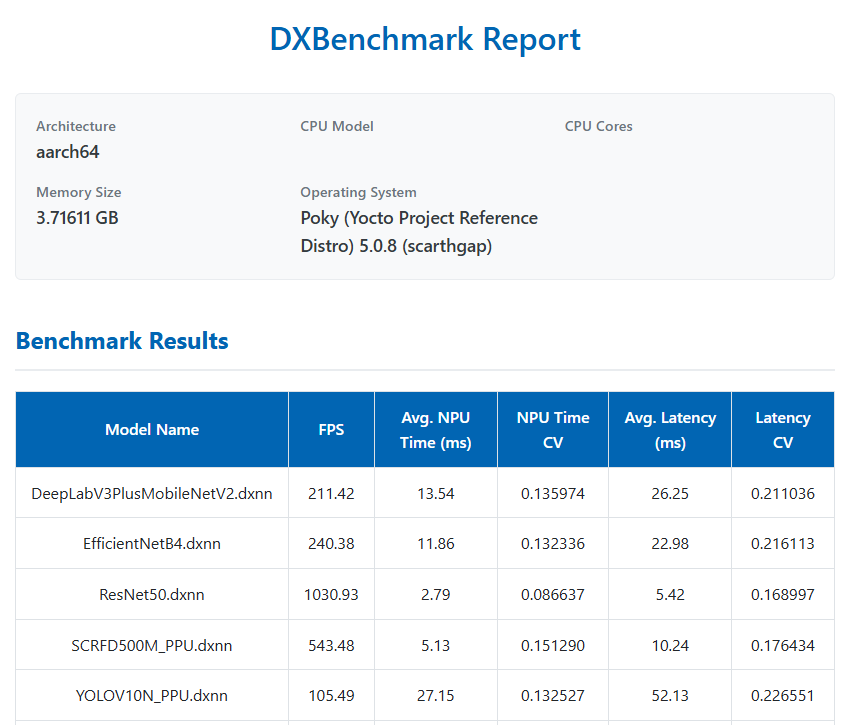
Depending on the number of models and the selected loop count, the benchmark may take several minutes to complete. Once finished, the benchmark results are generated in multiple formats, including:
- a JSON file
- a CSV file
- an HTML report
These reports provide detailed performance metrics for each model, such as inference time and throughput.
As of version 3.3.2 the information is limited and the charts have been removed.
Below is a screenshot showing a portion of the generated HTML report (it is just an example and the values are not correct).