Network
The SOM Carrier Boards have two Gigabit Ethernet connectors.
| Board | Interfaces in U-Boot | Interfaces in Linux |
|---|---|---|
| RX/G3E SOM | 1 (Using connector ETH A) | 2 (both ETH A and ETH B) |
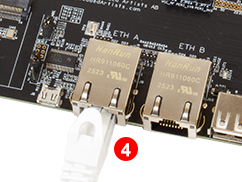
To test the network one or two network cables, a network with a DHCP server and access to Internet is required. The examples assume that the network is 192.168.5.0/255.255.255.255. Replace the IP addresses below to match the network configuration that the board is connected to.
U-Boot
The U-Boot has basic network functionality but only for the first/primary interface.
Use the ping command to test the network. It only handles IP addresses, that is, no host names. It also requires the ipaddr variable to have a valid IP address.
setenv ethaddr1 001AF1019BE8
setenv ipaddr 192.168.5.7
ping 192.168.5.22
Using ethernet@15C30000 device
host 192.168.5.22 is alive
Linux
The Linux image has full support for several Ethernet interfaces.
Status of network interfaces
Connector ETH A corresponds to interface end0 and connector ETH B to end1.
ifconfig
end0      Link encap:Ethernet  HWaddr 6E:49:2F:3C:EA:64
          inet addr:192.168.5.97  Bcast:192.168.5.255  Mask:255.255.255.0
          inet6 addr: fe80::6c49:2fff:fe3c:eb44/64 Scope:Link
          UP BROADCAST RUNNING MULTICAST  MTU:1500  Metric:1
          RX packets:27 errors:0 dropped:0 overruns:0 frame:0
          TX packets:61 errors:0 dropped:0 overruns:0 carrier:0
          collisions:0 txqueuelen:1000
          RX bytes:3242 (3.1 KiB)  TX bytes:9848 (9.6 KiB)
          Interrupt:80

end1      Link encap:Ethernet  HWaddr DE:9B:49:2A:91:6A
          inet addr:192.168.5.12  Bcast:192.168.5.255  Mask:255.255.255.0
          inet6 addr: fe80::d09b:49ff:fe2a:916a/64 Scope:Link
          UP BROADCAST RUNNING MULTICAST  MTU:1500  Metric:1
          RX packets:12 errors:0 dropped:0 overruns:0 frame:0
          TX packets:35 errors:0 dropped:0 overruns:0 carrier:0
          collisions:0 txqueuelen:1000
          RX bytes:2002 (1.9 KiB)  TX bytes:6152 (6.0 KiB)
          Interrupt:84

lo        Link encap:Local Loopback
          inet addr:127.0.0.1  Mask:255.0.0.0
          inet6 addr: ::1/128 Scope:Host
          UP LOOPBACK RUNNING  MTU:65536  Metric:1
          RX packets:98 errors:0 dropped:0 overruns:0 frame:0
          TX packets:98 errors:0 dropped:0 overruns:0 carrier:0
          collisions:0 txqueuelen:1000
          RX bytes:8570 (8.3 KiB)  TX bytes:8570 (8.3 KiB)
Start interface
The interfaces are automatically started when the cable is inserted which can be seen in the terminal:
dwc-eth-dwmac 15c30000.ethernet end0: Link is Up - 1Gbps/Full - flow control rx/tx
IPv6: ADDRCONF(NETDEV_CHANGE): end0: link becomes ready
One way to test the network is with the ping program. Unlike the U-Boot version the Linux version handles host names as well (use Ctrl-C to end the program).
ping www.sunet.se
PING www.sunet.se (192.36.171.231): 56 data bytes
64 bytes from 192.36.171.231: seq=0 ttl=56 time=16.412 ms
64 bytes from 192.36.171.231: seq=1 ttl=56 time=18.279 ms
64 bytes from 192.36.171.231: seq=2 ttl=56 time=19.125 ms
64 bytes from 192.36.171.231: seq=3 ttl=56 time=17.355 ms
^C
--- www.sunet.se ping statistics ---
4 packets transmitted, 4 packets received, 0% packet loss
round-trip min/avg/max = 16.412/17.792/19.125 ms
The ping command uses the first interface (end0) by default. To specify that it should use another interface use the –I option.
ping -I end1 www.sunet.se
When using only the second interface (end1) it is possible that the ping program fails. This is most likely because the routing table does not handle the interface. To fix this first look at the current routing table.
route
Kernel IP routing table
Destination  Gateway     Genmask       Flags Metric Ref Use Iface
default      _gateway    0.0.0.0       UG    0      0     0 end0
192.168.5.0  *           255.255.255.0 U     0      0     0 end0
192.168.5.69 *           255.255.255.0 U     0      0     0 end0
The default route is only for end0, so remove it and add a default route for end1 instead.
route del default
route add default gw 192.168.5.1 end1
After this change the end1 is the default Ethernet interface instead.
Iperf3
Ping is a great way to test if the hardware is connected to the network, or not, but to really test the network interface it is better to use a program like iperf3. The program works with a client and a server. The client is typically run on the board and the server software can either be installed on a computer on the local network https://iperf.fr/iperf-download.php or one of the online servers can be used https://iperf.fr/iperf-servers.php.
If iperf3 is not available on the file system then it can be added when building the file system by adding iperf3 to IMAGE_INSTALL:append in local.conf.
IMAGE_INSTALL:append = " \
  iperf3 \
"
To run the test first start the server by running the program with the -s switch. On a server running Linux the command looks like this.
iperf3 -s
-----------------------------------------------------------
Server listening on 5201
-----------------------------------------------------------
The next step is to run the client on the target hardware.
iperf3 -c 192.168.5.128 -p 5201 -i 1 -P 4 -t 10
The most important parameter is the URL or IP number of the server, in this case 192.168.5.128 and the port number reported by the server, in this case 5201. There are a lot of options that can be given to the program. Use the --help option to see them all.
The client prints a lot during the test phase and in the end it prints a summary like this.
[ ID] Interval           Transfer     Bitrate         Retr
[  5]   0.00-10.01  sec   281 MBytes   235 Mbits/sec    0   sender
[  5]   0.00-10.04  sec   280 MBytes   234 Mbits/sec        receiver
[  7]   0.00-10.01  sec   283 MBytes   237 Mbits/sec    0   sender
[  7]   0.00-10.04  sec   282 MBytes   235 Mbits/sec        receiver
[  9]   0.00-10.01  sec   282 MBytes   237 Mbits/sec    0   sender
[  9]   0.00-10.04  sec   281 MBytes   235 Mbits/sec        receiver
[ 11]   0.00-10.01  sec   283 MBytes   237 Mbits/sec    0   sender
[ 11]   0.00-10.04  sec   281 MBytes   235 Mbits/sec        receiver
[SUM]   0.00-10.01  sec  1.10 GBytes   946 Mbits/sec    0   sender
[SUM]   0.00-10.04  sec  1.10 GBytes   939 Mbits/sec        receiver
The last two lines display the bandwidth for send (946 Mbit/s) and receive (939 Mbit/s). Note that this number is limited by several factors: max bandwidth of the board's CPU, any network switches, network card in the PC and the PC performance.